

Configure your Space
Link GitHub repos, set the Slack channel, and optionally link a Jira project.
After you create a Space, you configure it so Andy knows where to post updates and which work to track. This usually takes a couple of minutes.
Open the Space settings
- Click Spaces in the sidebar and pick the Space you just created.
- Click Settings in the Space's left-hand menu.
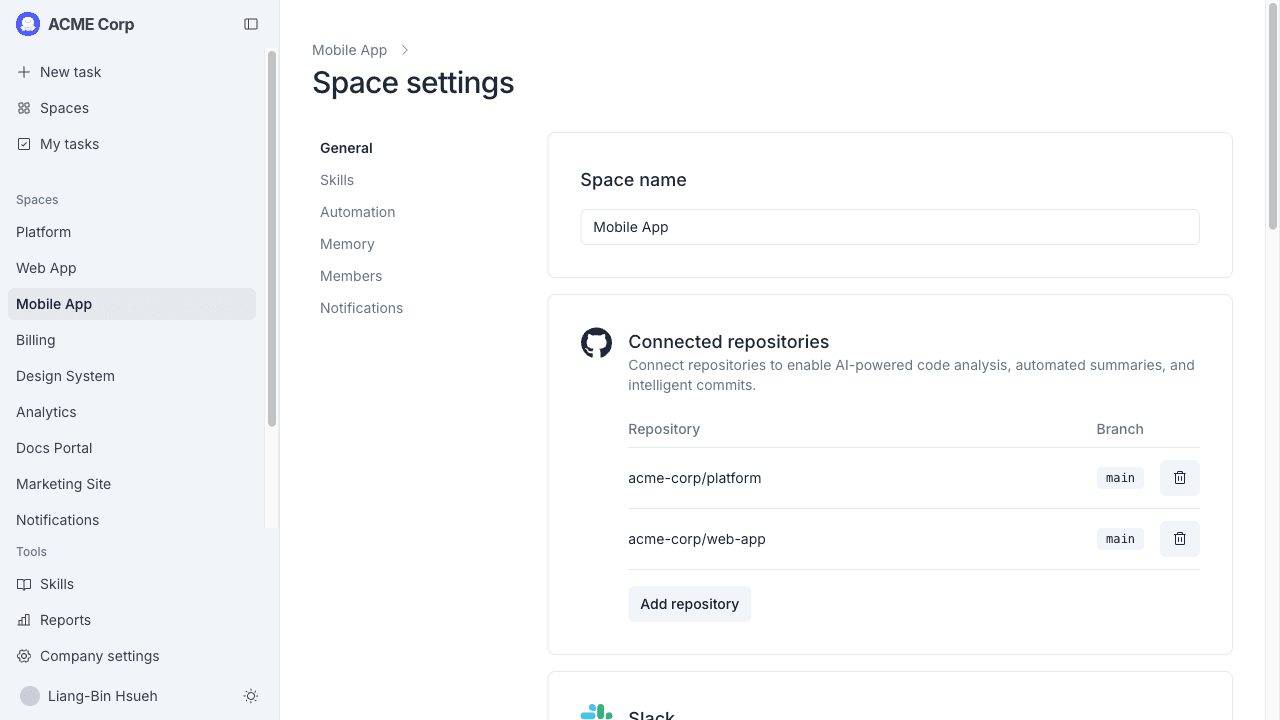
The settings page is split into sections. You'll fill in the ones that apply to your team.
Link a Slack channel
The Slack channel is where Andy posts PR summaries and status updates for this Space, and where teammates mention Andy to start a conversation.
- In the Slack channel section, start typing a channel name. Matching public channels appear in a dropdown — click one to select it.
- If the channel is private, type the full channel name directly. Private channels don't appear in search results.
- Click Save.
- In Slack, invite @MeetAndy to that channel. Andy doesn't post in channels it isn't a member of.
Pick a channel that the people working on this project actually read. Public channels work best, but private channels work too as long as you invite Andy.
Link a Google Chat space
If you connected Google Chat and want Andy to listen and post updates in a Google Chat space, link it here. This section only appears if your company has connected Google Chat.
- In the Google Chat section, open the dropdown. The list shows Google Chat spaces where Andy is already a member.
- If the space you want isn't in the list, add Andy to that space in Google Chat first, then reopen the dropdown.
- Select the space. The setting saves automatically.
Each MeetAndy Space can be linked to one Google Chat space. Andy will post updates and listen for @-mentions in the linked space.
Link Git repositories
If your Space's main project is a GitHub or GitLab repository, it's already linked. You can attach additional repositories, useful for projects that span multiple repos.
- In the GitHub repositories (or GitLab projects) section, click Add repository.
- Pick the repo from the dropdown. Only repos available through your GitHub installation or GitLab connection appear.
- Save. Andy starts tracking PRs/MRs and CI activity in the new repo too.
Remove a repository with the trash icon next to it. A Space must keep at least one repository linked; you can't remove the last one.
Checking out a different branch
By default Andy checks out each repo's own default branch (main, for example). To have Andy work from a different branch instead, open the branch dropdown next to the repo and pick one. MeetAndy verifies the branch exists in the repo before saving. Clear the field to go back to the repo's real default branch.
Link Jira projects (optional)
If you connected Jira and your Space tracks Jira issues:
- In the Jira section, click Add Jira project and pick from the dropdown.
- Save.
A Space can link to multiple Jira projects, and the same Jira project can be linked from multiple Spaces. Andy reads tickets from these projects when mentioned and updates them on your team's behalf as work progresses. See Reading and writing tickets.
Link Confluence spaces (optional)
If you connected Confluence and your Space references documentation pages:
- In the Confluence section, click Add Confluence space and pick from the dropdown.
- Save.
A Space can link to multiple Confluence spaces, and the same Confluence space can be linked from multiple Spaces. See Reading and writing pages for what Andy can do with linked Confluence content.
Link Google Drive resources (optional)
If your team keeps important reference material in Google Drive (design specs, product briefs, internal handbooks), you can link folders and individual files to a Space. Andy reads the content as additional context when planning and implementing tasks.
The flow has two parts because Google requires you to grant access explicitly.
Step 1: Share the resource with Andy
The Google Drive section on the Space settings page shows MeetAndy's service account email, something like meetandy-...@...gserviceaccount.com. Click it to copy.
In Google Drive, share the folder or file you want to link with that email address as a Viewer.
Step 2: Paste the URL
- Copy the Google Drive URL of the folder or file you just shared.
- Paste it into the URL field in the Google Drive section and press Enter.
- The resource appears in the Added table below with its name, type, and a trash icon to remove it.
You can link folders, Google Docs, Sheets, Slides, and other file types. Folders include their contents, so anything Andy needs from inside the folder is reachable.
Removing a linked resource
Click the trash icon next to the row. The resource is unlinked immediately, and Andy stops using it as context. The file itself stays in your Drive untouched.
Space memory
Space settings → Memory shows the context Andy has built up for this Space (see Memory and context).
Every past version of a Space's memory is kept. Open the history from the Memory section to see who changed what and when, and use Restore on any earlier version to bring it back as the current memory. Restoring doesn't delete anything; it just adds the restored content as a new version on top.
Other settings to know about
The Space settings page also has sections for:
- Members. Who has access to this Space, and at what role.
- Automation. The automations that run on this Space (PR summaries, sprint reports, etc.).
- Notifications. What Andy posts where, and how often.
You don't need to touch these to get started. Sensible defaults apply automatically.
You're done
Your Space is set up. Mention @MeetAndy in your Slack channel or Google Chat space and ask it something. See Working with Andy in Slack or Working with Andy in Google Chat for what to try first.