

Connect Confluence (optional)
Link your Confluence site to MeetAndy so Andy can read and write Confluence pages in your Spaces.
Connecting Confluence is optional. If your team writes specs, runbooks, or design notes in Confluence, this lets Andy read pages you reference and write content back (drafts, updates, attachments, inline images). If your team doesn't use Confluence, skip ahead to Create a Space.
This is an admin-only step.
Choose how much of Confluence to share
Open Manage → Integrations from the sidebar, find the Confluence card, and click Connect. MeetAndy asks how much of your Confluence site it should be able to reach.
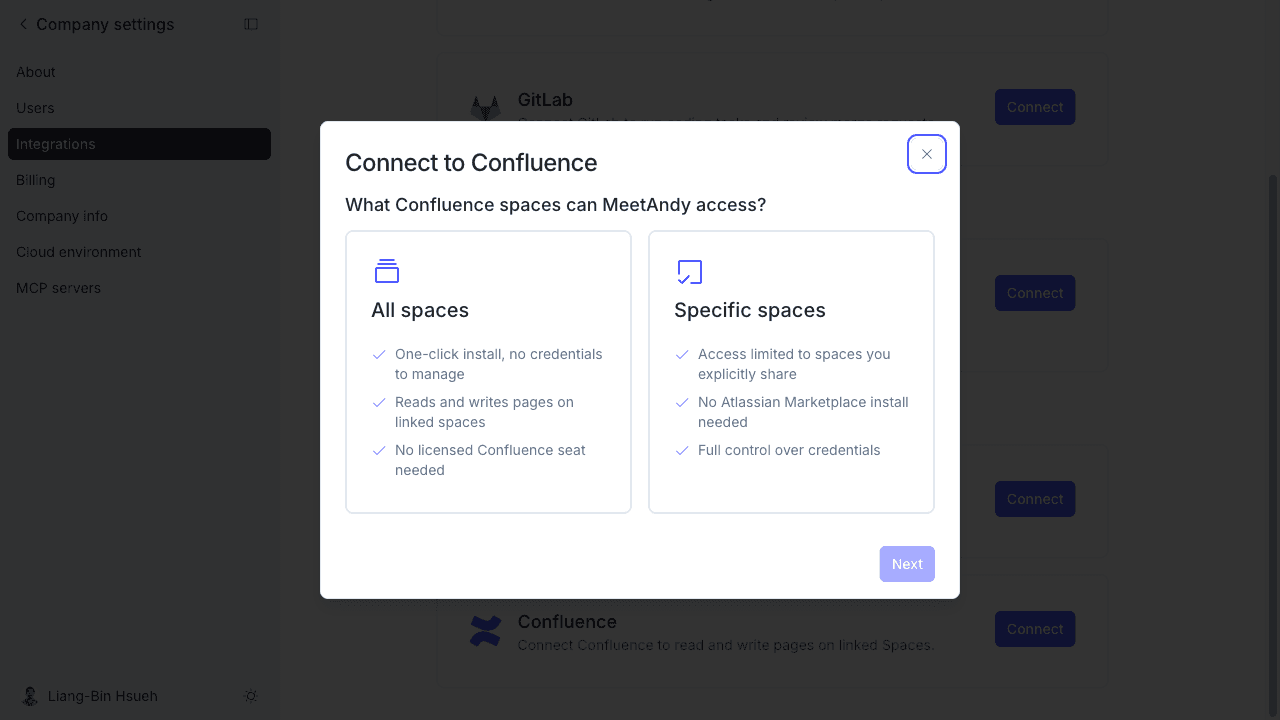
- All spaces installs the MeetAndy Assistant app from the Atlassian Marketplace. One-click install, no credentials for you to manage, and no licensed Confluence seat needed. Andy reads and writes pages on the spaces you link.
- Specific spaces authenticates as an Atlassian account you control. Access is limited to the spaces you share with that account, and Atlassian enforces the boundary. No Marketplace install needed.
Pick one and click Next.
All spaces runs on the same Atlassian app as Jira, so Jira has to be connected through the Marketplace app first. If Jira isn't connected at all, MeetAndy says so and offers a Set up Jira button. If Jira is connected with an API token instead, that path stays blocked. Go Back and choose Specific spaces.
All spaces
- Click Continue to Atlassian. A new tab opens to the Atlassian Marketplace.
- Approve the app install on your Atlassian site. Atlassian walks you through it.
- Return to the MeetAndy tab and click Test connection.
Once Atlassian finishes registering the install, the integration switches to Connected.
Specific spaces
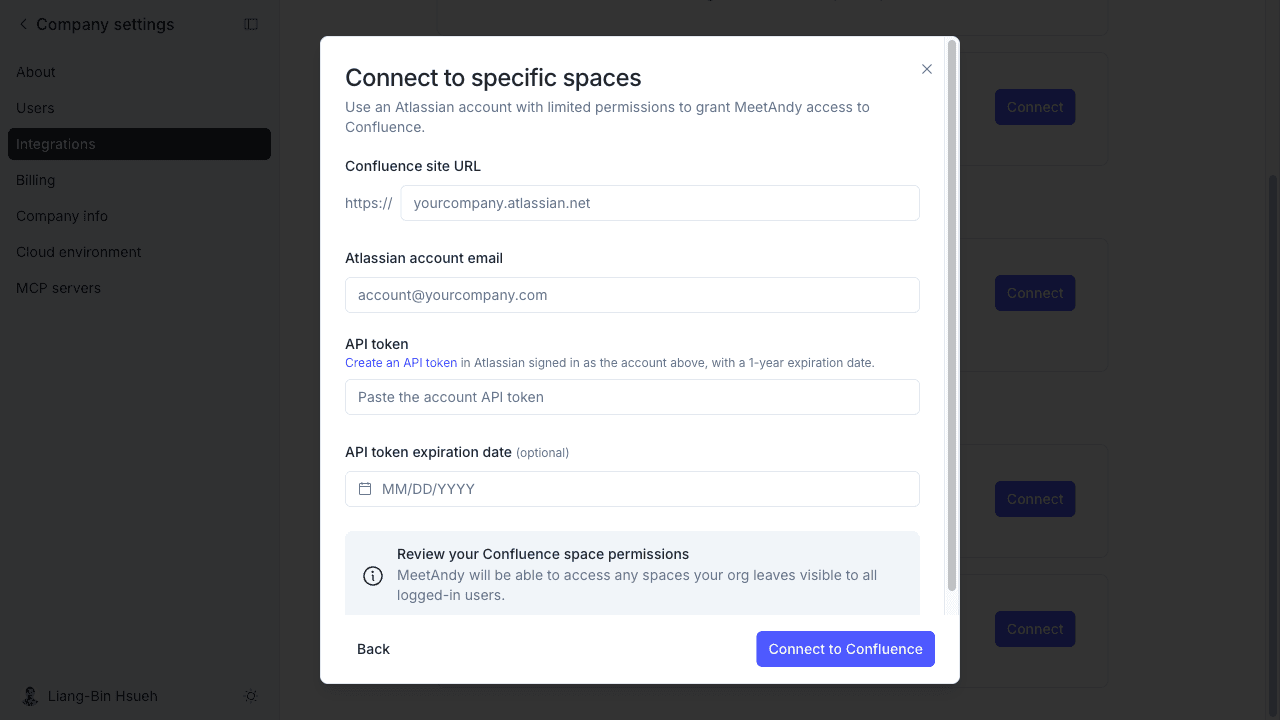
Fill in the form and click Connect to Confluence:
- Confluence site URL — your site without the protocol, for example
acme.atlassian.net. - Atlassian account email — the account MeetAndy authenticates as.
- API token — create one in Atlassian while signed in as that account. The form links straight to the right page.
- API token expiration date — optional, but worth filling in. See the callout below.
If Jira is already connected with an API token, the form starts with two choices: Reuse existing Atlassian account, which uses the credentials Jira already has, or Use a new Atlassian account, which shows the fields above.
Set the expiration date and MeetAndy emails your company admins 7 days out, 1 day out, and once after the token has expired, so you have time to rotate it. Leave it blank and you get no warning.
Link a Confluence space to your MeetAndy Space
Connecting the integration enables Confluence for the whole company. To tell Andy which Confluence spaces belong to a given MeetAndy Space, link them in Space settings:
- Open the MeetAndy Space and click Settings.
- In the Confluence section, open Add a Confluence space... and pick from the list. Use Search spaces... to narrow it down.
- The picker stays open so you can add several in a row. Each choice saves as you make it, so there is no separate save step.
Linked spaces appear as chips above the picker. Click the × on a chip to unlink that space.
You can link more than one Confluence space to a single MeetAndy Space. The same Confluence space can also be linked to multiple MeetAndy Spaces, which is useful when several teams share documentation. Personal spaces are excluded.
What Andy uses Confluence for
Once linked, Andy can:
- Read pages when you reference them by URL or title in Slack or the web app.
- Create new pages, published or saved as a draft for you to review.
- Update existing pages, including content, title, or labels.
- Upload attachments and inline images as part of a page.
See Reading and writing pages for details on what Andy can do once Confluence is linked to a Space.
Disconnecting
Open Manage → Integrations → Confluence and click Disconnect. What happens next depends on how you connected.
All spaces. MeetAndy walks you through two steps. First, uninstall the app from Atlassian: open your Atlassian connected apps page, find MeetAndy Assistant and expand it, select View app details, then Uninstall, and confirm. Second, come back and click Disconnect Confluence to remove the connection from MeetAndy.
Specific spaces. Confirm with Disconnect Confluence. Then delete the API token from the Atlassian account settings for that account yourself. MeetAndy cannot revoke it for you.
Disconnecting Confluence does not remove the Jira integration. On the Marketplace path they share an install, but they track state independently.
Troubleshooting
"Set up Jira to enable Confluence." You picked All spaces but Jira isn't connected on this site yet. Connect Jira through the Atlassian Marketplace app first, or go back and use Specific spaces.
"Jira must be connected to all projects first." Jira is connected, but with an API token rather than the Marketplace app. All spaces needs the Marketplace app. Go back and choose Specific spaces.
"Not yet connected" after installing from the Marketplace. The install takes a few seconds to register on Atlassian's side. Wait a moment and click Test connection again.
My space isn't in the picker. The list shows the first 250 spaces. If yours isn't there, contact support.