

Connect Slack
Install the MeetAndy Slack app and authorize your workspace.
Connecting Slack is recommended. Slack is where your team will talk to Andy day-to-day, asking questions, planning changes, and handing off tasks. You can use MeetAndy without Slack via the web app, but most teams find the Slack experience much smoother.
This is an admin-only step. You only need to do it once for your whole company.
Install the Slack app
-
Open Company settings → Integrations from the sidebar.
-
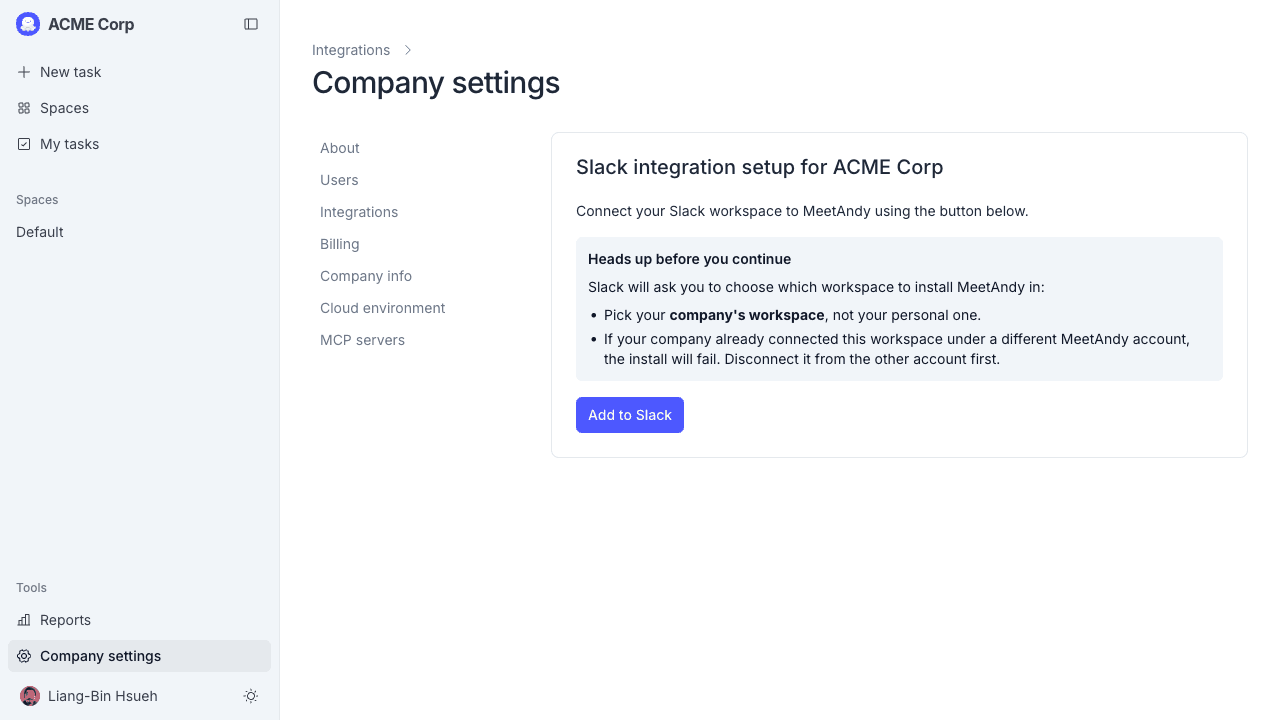
In the Chat section, click Connect. Until a chat tool is connected the card reads Connect a chat tool, and MeetAndy asks which app your company uses. Choose Slack. You'll land on the Slack setup page.
-
Click Add to Slack. You'll be sent to Slack's standard install screen.
-
On Slack's screen, pick the workspace you want Andy in and review the permissions Andy is asking for. They include reading channel history, sending messages, and reading reactions. Andy uses these to follow team conversations and respond to mentions.
-
Click Allow. Slack sends you back to MeetAndy and the integration shows as Connected.
Andy doesn't post anywhere on its own until you put it in a channel. Joining channels happens later, when you configure each Space. See Configure your Space.
Verify the connection
Back on Company settings → Integrations, the Slack card shows the connected workspace URL and a Test Connection button. Click it to confirm Andy can still reach Slack. This is handy after a token rotation or if Andy has gone quiet in your channels.
What permissions Andy gets
Andy asks for the minimum scopes it needs to work as a teammate in Slack:
- Read channels and history, so Andy can pick up context when mentioned in a thread
- Send messages and reactions, so Andy can reply to questions, post updates, and acknowledge messages
- Read users and emails, so Andy can resolve
@mentionsto real people in summaries - Post as the sender, so a comment mirrored from the web app can appear under your name instead of a generic bot name. See Web app and Slack mirroring.
Andy never reads channels it isn't invited to.
Reconnecting
You don't need to disconnect first to refresh the Slack token. Use Reconnect on the Slack card whenever:
- The bot token was revoked outside MeetAndy (an admin removed the app from Slack, for example)
- Slack has gone quiet and Test Connection fails
- MeetAndy asks for new scopes for a feature. In that case the button reads Update permissions and a "Slack permissions outdated" alert appears on the card
Reconnecting refreshes the connection to the same Slack workspace in place: the bot token rotates but your Slack message history with Andy stays linked.
Disconnecting
To remove the Slack integration:
- Open Company settings → Integrations → Slack in MeetAndy.
- Click Disconnect. MeetAndy revokes its Slack token immediately.
The MeetAndy app may still appear under your Slack workspace's installed apps. If you want to remove it there too, go to your Slack workspace's Manage apps page and uninstall it manually.
Troubleshooting
Slack says I don't have permission to install apps. You need to ask a Slack workspace admin to install it, or have them grant you permission. They can use the same Add to Slack button.
The integration shows as "Disconnected" right after install. Try Reconnect. If that doesn't help, uninstall the MeetAndy app from your Slack workspace's app management page, then run through the install flow again.
Install fails with "workspace already connected". A Slack workspace can only be linked to one MeetAndy company at a time. Disconnect it from the other MeetAndy account first, then retry.