

Connect Jira (optional)
Link your Jira site to MeetAndy so Andy can read and update tickets.
Connecting Jira is optional. If your team tracks work in Jira tickets, this lets Andy read tickets when you mention them, comment on tickets, and update ticket statuses on your behalf. If your team doesn't use Jira, skip ahead to Create a Space.
This is an admin-only step.
Connect your Jira site
When you click Connect on the Jira card, MeetAndy first asks what Jira projects Andy can access. Your choice here decides how MeetAndy authenticates:
- All projects (recommended) — installs the MeetAndy Assistant app from the Atlassian Marketplace. One-click install, no credentials to manage, and real-time issue updates and @-mentions.
- Specific projects — connects with a service-account API token instead. No Atlassian Marketplace install needed, access is limited to the projects you explicitly share, and you keep full control over the credentials.
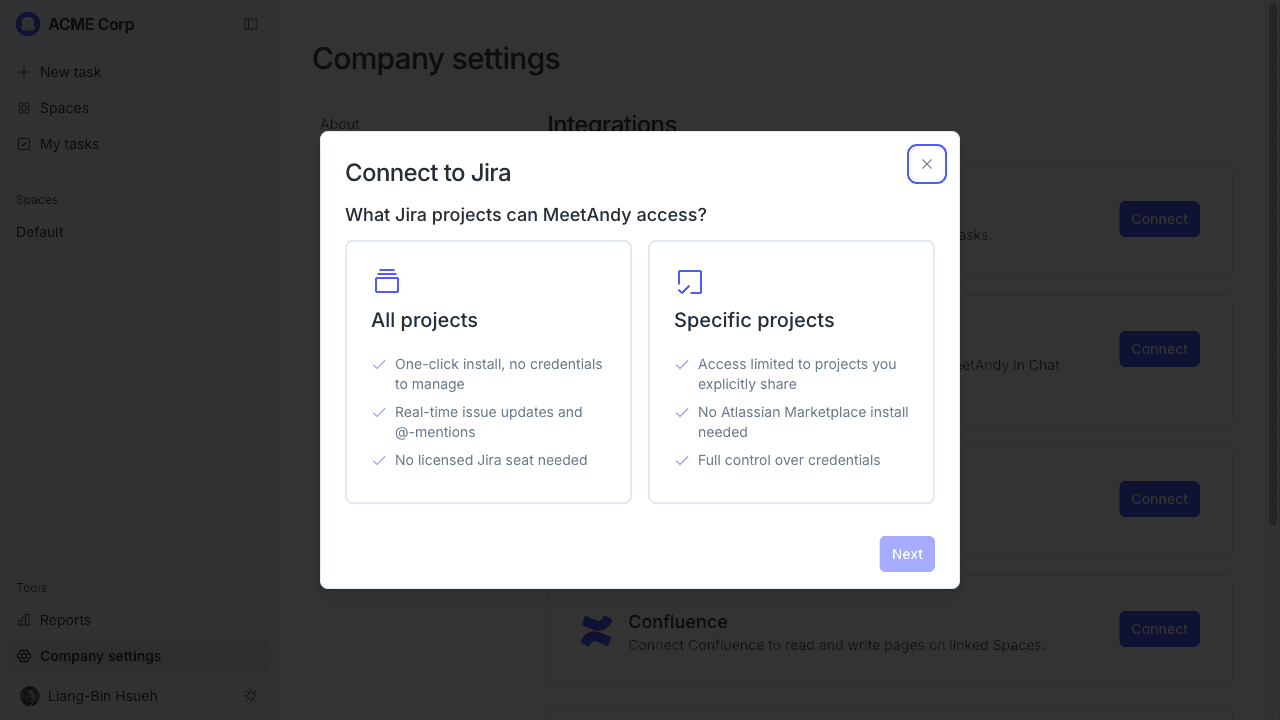
All projects (Atlassian Marketplace app)
- Open Company settings → Integrations from the sidebar.
- Find the Jira card and click Connect.
- Choose All projects and click Next. You'll be taken to the Atlassian Marketplace.
- Click Get it now (or Try it free) and pick your Jira site. The app is named MeetAndy Assistant.
- Atlassian walks you through the install. When it finishes, you'll be sent back to MeetAndy.
- Back in MeetAndy, click Check status. Once Atlassian finishes setting up the app, the integration switches to Connected.
The install can take a minute or two on Atlassian's side. If Check status still shows "Pending" after a few minutes, refresh the page and try again.
Once the integration is Connected, the Jira card exposes a Test Connection button. Click it to confirm Andy can still reach your Jira site (useful if a Jira admin has changed permissions on the MeetAndy Assistant app).
Specific projects (service account API token)
- Open Company settings → Integrations from the sidebar.
- Find the Jira card and click Connect.
- Choose Specific projects and click Next.
- In the Jira Cloud URL field, enter your full Jira site URL (for example,
acme.atlassian.net). - Enter the API token and the service account email for the Atlassian account Andy should use.
- Set the token expiry date so MeetAndy can warn company admins before the token lapses.
- Click Save.
Once connected, Andy can see only the Jira projects the service account has access to. To expand access, update the service account's permissions in Jira.
MeetAndy emails company admins before the token expires so you have time to rotate it.
When you later connect Confluence, MeetAndy offers a one-click Reuse my service account option so you don't need to enter the same credentials twice.
What Andy uses Jira for
Once connected, Andy can:
- Read Jira tickets when you mention them in Slack. For example, paste a ticket key or URL and ask Andy to plan the work.
- Update tickets: comment, change status, edit fields, all from a Slack conversation or the Coding Agent's workflow.
You'll link Jira projects to your Spaces later, in Configure your Space. A Space can be linked to more than one Jira project, and the same project can be linked to multiple Spaces.
Disconnecting
The steps differ depending on which authentication method you chose.
Atlassian Marketplace app
- Open Company settings → Integrations → Jira in MeetAndy.
- Click Disconnect.
- MeetAndy will tell you to also uninstall the app from inside Jira. Go to Jira → Apps → Manage your apps, find MeetAndy Assistant, and uninstall it.
- Back in MeetAndy, click I've uninstalled, remove connection to finish.
Service account (API token)
- Open Company settings → Integrations → Jira in MeetAndy.
- Click Disconnect.