

Scheduled runs
Ask Andy in Slack to run a report, summary, or analysis later or every week, and see or cancel your schedules.
A scheduled run is work you ask Andy to do later, once or on a repeat, such as a summary of yesterday's merged pull requests or a weekly backlog report. You create schedules by talking to Andy in a Space channel, and you can see and cancel them in Slack or in MeetAndy. Scheduled runs work in Slack only for now.
How it works
- Ask Andy in a Space channel. Mention
@MeetAndyin a Space channel (the Slack channel linked to a Space) and say what to do and when. - Approve the schedule. Andy repeats the details back to you and posts an approval card with the time, the date of the first run, and the time zone. Nothing is saved until you approve it on the card. If something is wrong, cancel and tell Andy what to change.
- Andy confirms. Andy replies with the schedule's title and when it runs next.
- Andy runs it. At the scheduled time, Andy posts a new message in the Space channel that starts with Scheduled run and names you, then delivers the result in that message's thread.
Each run uses your own connections and access, the same as if you had asked Andy yourself. To ask a follow-up question about a result, reply in the run's thread and mention @MeetAndy, because Andy only sees messages that mention it.
Scheduled runs are read-only. Andy can write reports, summaries, and analysis, but it won't change code, open pull requests, or deploy on a schedule. If Andy needs something from you to finish a run, it lists what it needs at the end of the result.
Time zones
You don't need to include a time zone. Andy uses the time zone from your Slack profile. If your Slack profile has no time zone, Andy asks you which one you mean.
To use a different time zone, name it in your message, for example "Tokyo time" or America/New_York. Andy shows the time zone on the approval card, so you can check it before you approve.
Schedule a one-time run
Say the day and the time, then what you want. Andy runs it once and the schedule ends.
@MeetAndy Tomorrow at 9:00 AM, summarize the pull requests merged in this Space yesterday.@MeetAndy On Friday at 4:30 PM, list the open P1 bugs and who owns each one.To run it in another time zone:
@MeetAndy Tomorrow at 9:00 AM Tokyo time, summarize this week's release blockers.Schedule a weekly run
Say the day of the week and the time, then what you want. Andy runs it every week at that time until you cancel it.
@MeetAndy Every Monday at 9:00 AM, summarize the P1 backlog and list anything you need from me.@MeetAndy Every Friday at 5:00 PM, write a weekly summary of what was merged and what is still in review.You can also ask for a daily run:
@MeetAndy Every day at 6:00 PM, list the pull requests that are still waiting for review.A schedule repeats once a day or once a week on one day. Andy can't run something hourly, every other week, or monthly. To run on several days of the week, create one weekly schedule per day.
List your scheduled runs
Ask Andy in any Space channel:
@MeetAndy What scheduled runs do I have?Andy lists the schedules you created that are still active, with when each one runs next. It doesn't list other people's schedules.
You can also see schedules in MeetAndy, on a Scheduled tasks page in three places:
| Where | Who can open it | What it shows |
|---|---|---|
| Settings → Scheduled tasks. Open Settings from the user dropdown in the sidebar. | Everyone | The schedules you created |
| Space settings → Scheduled tasks | Everyone who can access the Space | Every schedule that posts to that Space |
| Manage → Scheduled tasks | Company Admin and Company Manager | Every schedule in your company |
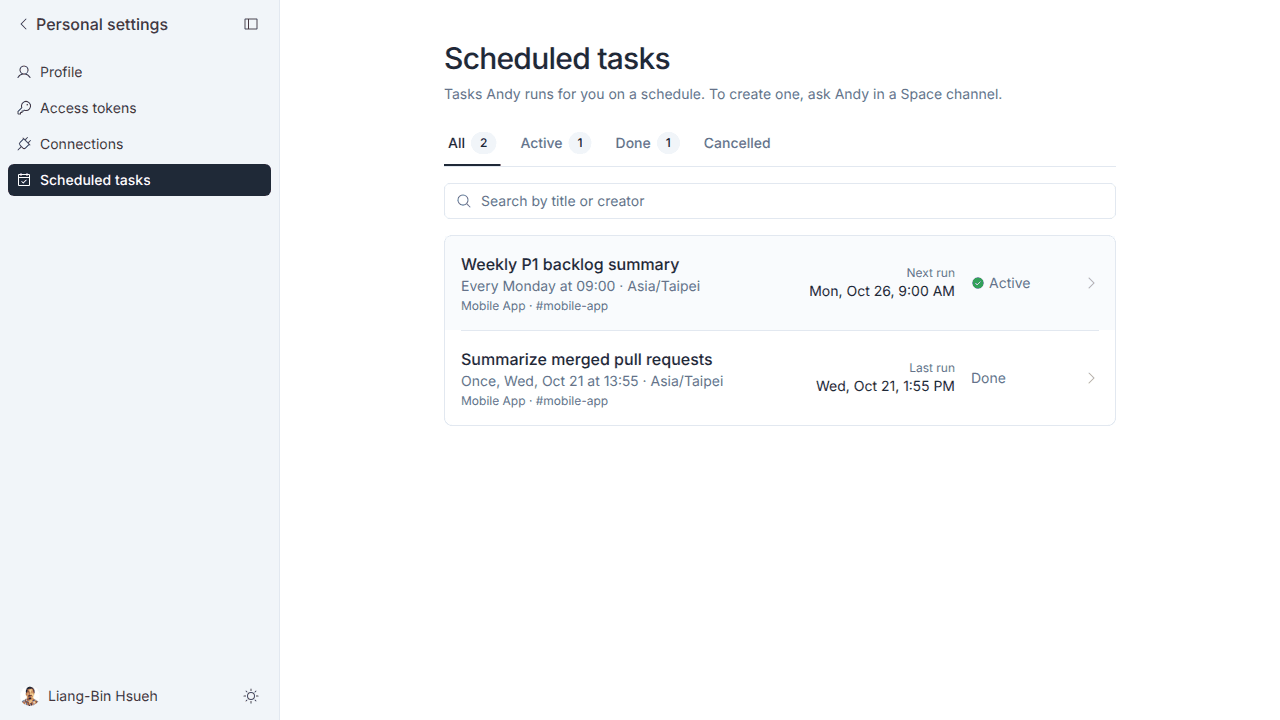
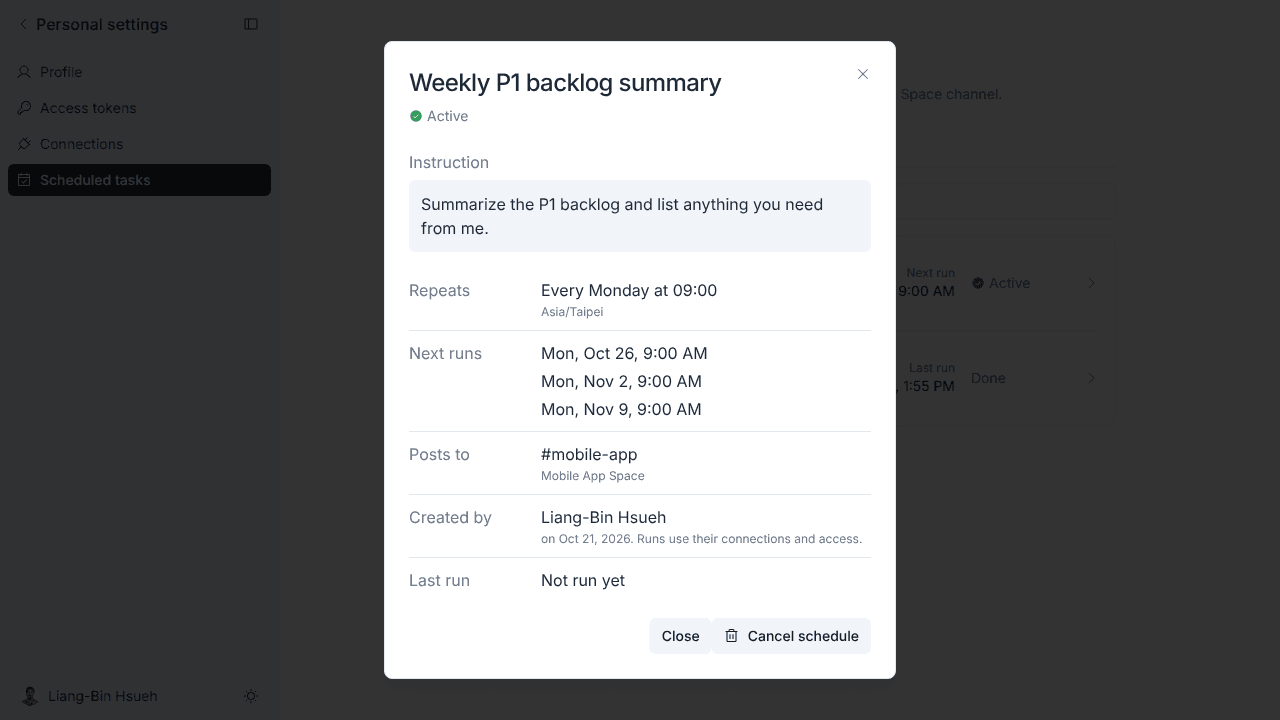
Each page has All, Active, Done, and Cancelled tabs and a search box. Click a schedule to see its instruction, how often it repeats, its next runs, where it posts, who created it, and a link to the task from its last run. A one-time schedule moves to Done after it runs.
Cancel a scheduled run
Ask Andy in a Space channel and describe the schedule:
@MeetAndy Cancel my Monday P1 backlog schedule.Or reply in the thread of one of its runs:
@MeetAndy Cancel this schedule.Andy cancels it right away, without an approval card, and tells you which schedule it cancelled. If more than one schedule matches, Andy asks which one you mean. In Slack you can only cancel schedules you created.
To cancel from MeetAndy, open any of the Scheduled tasks pages, click the schedule, click Cancel schedule, and confirm. The person who created a schedule can cancel it, and a Company Admin or Company Manager can cancel any schedule in the company.
A cancelled schedule doesn't run again, and you can't undo the cancel. Results from past runs stay in Slack. Schedules can't be paused or edited: to change one, cancel it and ask Andy for a new one.
Billing
Talking to Andy only to create, list, or cancel schedules is free. If you ask Andy to do other work in the same thread, that thread counts as a task as usual.
Each scheduled run counts as a task, the same as asking Andy yourself.
Limits
- Your company can have up to 100 active schedules. When it reaches the limit, cancel one before creating another.
- You create schedules in a Space channel. Andy posts every run in that channel.
- A run can start a few minutes after its scheduled time. If a run is missed, Andy runs it once when it can and doesn't catch up on every missed run.
- Messages posted by other bots can't create schedules.
- When someone is removed from your company, their schedules are cancelled. If the creator loses access to the Space, Andy skips the next run, posts a message in the channel saying why, and cancels the schedule.
Related pages
Network access policy
Choose how much outbound network access the Coding Agent's cloud environment gets, from a built-in allowlist to a custom domain list.
MCP
Use MCP with MeetAndy — connect external tools like Claude Code to read your tasks, or connect third-party services like Notion so Andy can act on them.