

MCP
Use MCP with MeetAndy — connect external tools like Claude Code to read your tasks, or connect third-party services like Notion so Andy can act on them.
MCP (Model Context Protocol) works in two directions with MeetAndy:
- MeetAndy as an MCP server — connect Claude Code, Cursor, or any MCP-compatible editor to MeetAndy so you can pull task plans and metadata directly from your editor.
- Third-party MCP connections — connect external services (like Notion) to MeetAndy so Andy can read and act on them when running tasks.
MeetAndy as an MCP server
MeetAndy ships an MCP server so any MCP-compatible client (Claude Code, Cursor, Claude Desktop, and others) can pull MeetAndy data directly from your local tool. Once connected, you can ask your editor things like "fetch MPD-123 from MeetAndy" without leaving it.
What the MCP server can do
The MeetAndy MCP server exposes three tools to the connected client:
get_task: fetch one task by slug (MPD-123), task UUID, or hub URL. Returns the title, description, status, branch, pull requests, Slack thread link, the latest plan, the walkthrough, and aconversationarray of the task's Q&A turns (Andy's clarifying questions and your answers).list_tasks: list tasks. Defaults to your active tasks across all Spaces. You can scope to one Space, filter by status, search by keyword, and paginate.list_spaces: list the Spaces you belong to in this company, with each Space's key, name, and description.
All access is scoped to your account. You only see Spaces you're a member of and tasks you can already see in the web app.
1. Create a personal access token
- Sign in to MeetAndy and open
/settings/tokens. - Click Create token, name it after the device you're configuring (for example,
Macbook Claude Code), and pick an expiration. - Copy the token when it's shown. MeetAndy only shows the plaintext once. If you lose it, revoke the token and create a new one.
Treat tokens like passwords. Anyone with the token can read your tasks.
2. Connect Claude Code
Add the MeetAndy MCP server to ~/.claude.json. Create the file if it doesn't exist, then paste:
{
  "mcpServers": {
    "MeetAndy": {
      "type": "http",
      "url": "https://hub.meetandy.ai/api/mcp",
      "headers": { "Authorization": "Bearer <your-token>" }
    }
  }
}
Replace <your-token> with the token you copied in step 1.
Restart Claude Code. In a new session, ask:
What MCP tools do you have from the MeetAndy server?You should see get_task, list_tasks, and list_spaces listed.
The same JSON snippet works for any client that supports HTTP-transport MCP servers. The Settings → Tokens page shows the snippet with your selected token already filled in.
3. Try it out
Reference any task by its slug from inside Claude Code:
Fetch MPD-123 plan from MeetAndyOr list what's on your plate:
What MeetAndy tasks am I working on right now?Tool reference
get_task
Returns full detail for a single task.
Input
task(required): a slug likeMPD-224, a task UUID, or a hub URL likehttps://hub.meetandy.ai/tasks/MPD-224.
Output (JSON)
The task's slug, title, description, status, phase, branch name/URL, Slack thread URL, an array of pullRequests (url, number, title, status, branchName), the latest plan (version, approval state, content), the most recent walkthrough summary, and a conversation array of Q&A turns between Andy and the task requester (question, answer, timestamp).
If the task has no plan or walkthrough yet, the tool returns an error describing the current status.
list_tasks
Returns a paginated list of tasks.
Input
scope:mine(default) orspace.minelists tasks you own across all your Spaces;spacelists every task in one Space.spaceKey: required whenscope='space'. Use a Space key likeMPD(find Space keys withlist_spaces).query: case-insensitive substring match on title and description.status:active(default),completed, orall.limit: page size, 1–50. Default 10.cursor: passnextCursorfrom a previous call to fetch the next page.
list_spaces
Returns each Space you belong to with its key, name, and description. Use the key with list_tasks when scope='space'.
Managing tokens
The Settings → Tokens page lists every active token with its name, creation date, and expiration. Click the trash icon to revoke a token immediately. The next request using it will fail with 401 Unauthorized.
Revoke a token if:
- The device it was installed on is lost or shared with someone else
- You no longer use the client it was configured for
- You suspect it was leaked
Personal MCP connections
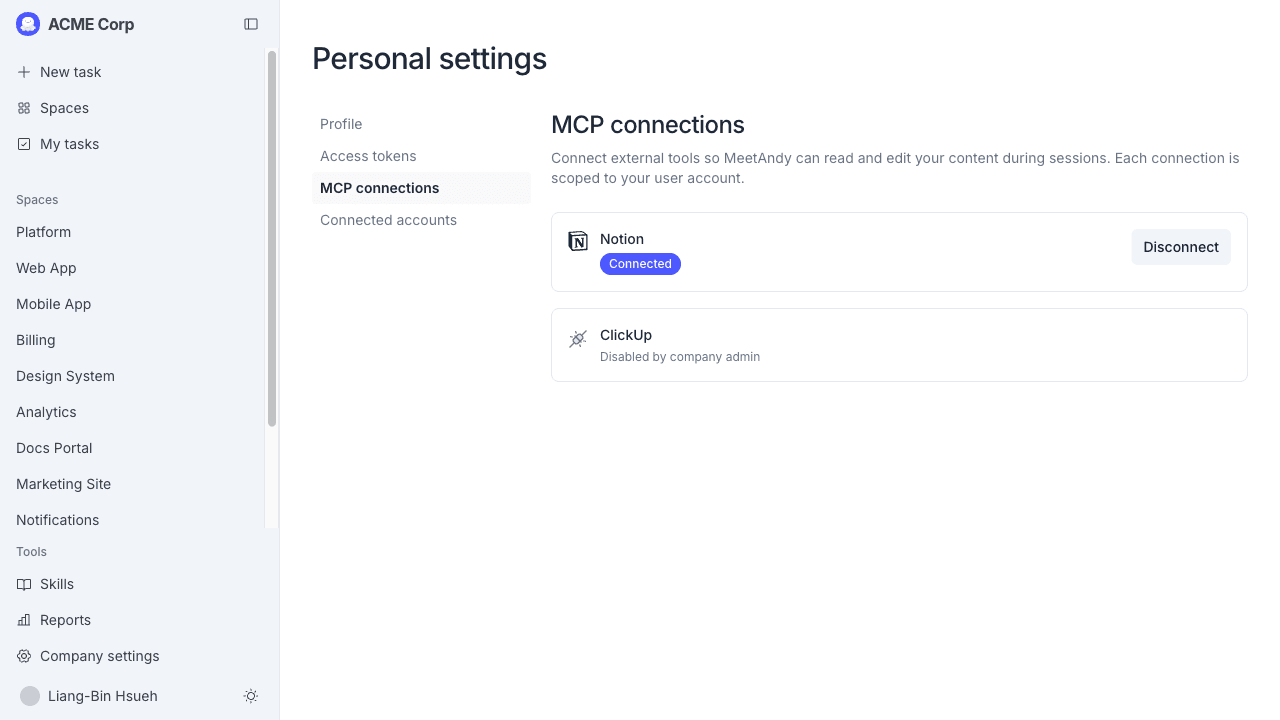
You can connect third-party services to MeetAndy so Andy can read and act on them during tasks. For example, connecting Notion lets Andy look up and update Notion pages when you ask it to.
These connections are personal — each user connects their own account for each service. Your connections are used when Andy runs tasks on your behalf. The MCP connections page is available to all companies. Notion is enabled by default, so no setup is needed to start using it.
Available services
| Category | Services |
|---|---|
| Project management | Linear |
| Design | Figma (personal access token) |
| Documentation | Notion, Mintlify, Context7 (personal access token) |
| Analytics | Amplitude, Mixpanel, PostHog |
| Developer tools | Postman, Railway, Netlify |
| Observability | Sentry, Honeycomb, incident.io, Datadog |
| Databases | MotherDuck, Neon |
| Finance | Mercury, Stripe |
Services marked personal access token connect with a token.
Connect a service
- Open Settings from the user dropdown in the sidebar.
- Go to MCP connections.
- Find the service you want to connect and click Connect.
- Complete the authorization flow in the popup. MeetAndy requests only the permissions it needs.
Once connected, the service shows a Connected badge. Andy can now access it when running your tasks.
If a service shows "Disabled by company admin", contact your company admin to enable it in Manage → Integrations.
Disconnect a service
On the MCP connections page, click Disconnect next to the service. Andy will no longer have access to that service for your tasks.
If a connection shows Re-authorization required, click Reconnect and complete the authorization flow again to restore access.