

Custom MCP servers
Add your own MCP server to MeetAndy so Andy can use its tools when running tasks for your company.
If your team runs its own MCP server, a company admin can add it to MeetAndy. Andy can then call its tools while working on tasks, the same way it uses built-in services like Notion. This page is for company admins who add servers and for teammates who connect to them.
Before you start
- You must be a company admin to add or manage custom servers.
- The server must be reachable over public HTTPS. Private, local, and
http://addresses are rejected, and the URL can't contain a username or password. - All calls from MeetAndy to your server leave from one MeetAndy IP address, so you can allow-list it if your server restricts traffic. Your server should still require its own key or sign-in.
- Each company can add up to 5 custom servers. MeetAndy uses up to 100 tools per server.
Add a server
- Open Manage and go to MCP servers.
- Click Add custom server.
- Enter a Name and the Server URL, for example
https://mcp.example.com/mcp. - Under How people sign in, choose how people authenticate (see below).
- Click Add server.
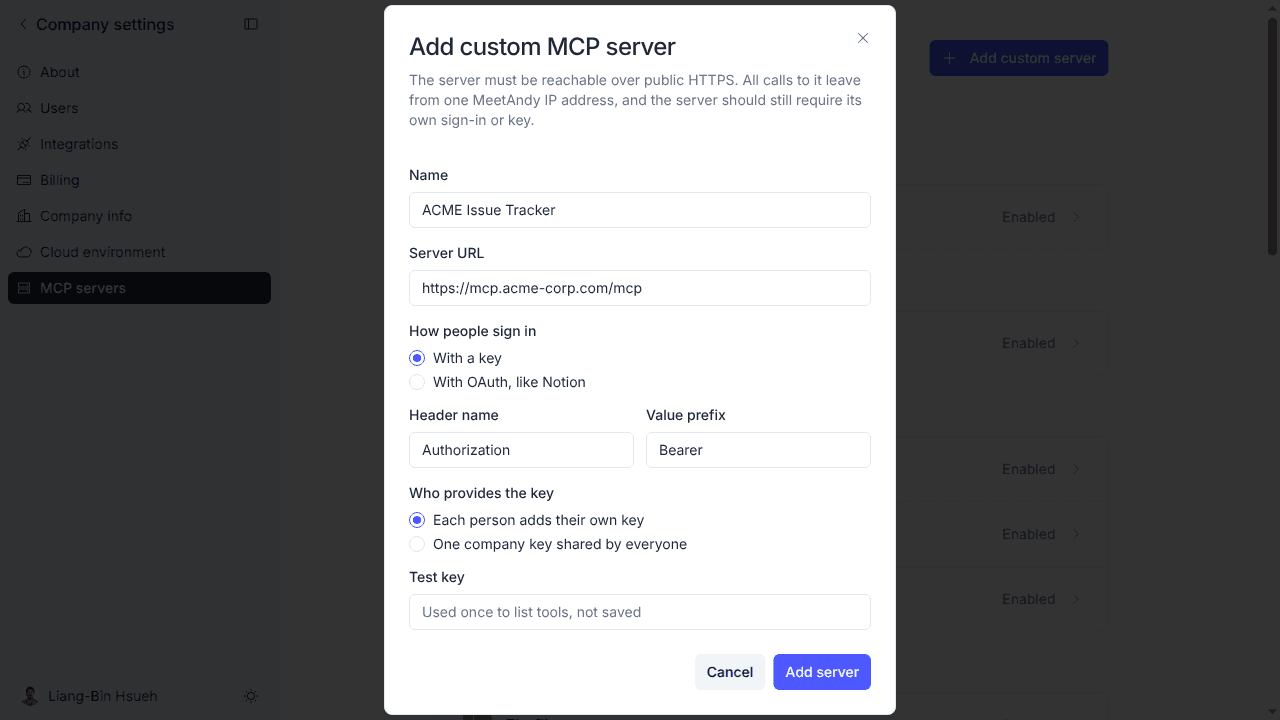
Sign in with a key
Choose With a key if your server expects an API key or token in an HTTP header.
- Enter the Header name (for example
Authorization) and the Value prefix (for exampleBearer, including the trailing space). - Choose Who provides the key:
- Each person adds their own key. Every teammate connects with their own key, so your server can tell people apart. You paste a Test key once so MeetAndy can list the server's tools. The test key is not saved.
- One company key shared by everyone. You paste a Company key, and MeetAndy stores it encrypted and never shows it again. Everyone's activity appears under this one key at your server.
- Click Add server. MeetAndy connects, lists the tools, and opens the server's page.
You can switch between the two options later under How people authenticate on the server's page.
Sign in with OAuth
Choose With OAuth, like Notion if your server supports OAuth sign-in. MeetAndy reads the sign-in settings from the server address, and each person signs in with their own account.
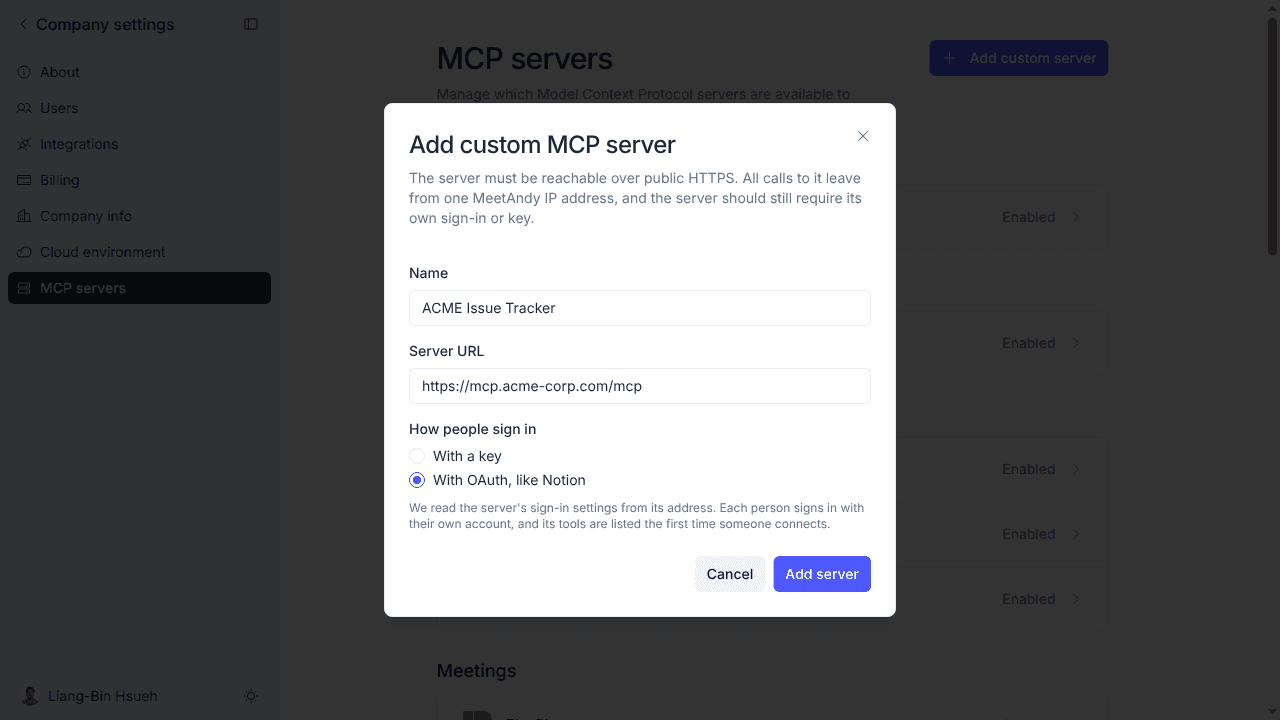
- Add the server. If your server doesn't support automatic client registration, the form asks for a Client ID. Register MeetAndy as a public client with your server and paste the client ID.
- On the server's page, the status shows Setup not finished until the tools are listed. Click Connect to load tools and sign in with your own account once. Nobody can use the server until you do.
Choose which tools Andy can use
Open the server from Manage → MCP servers. Under Allowed tools, tools are grouped as Read and Write. A tool is listed under Read only if your server marks it as read-only. Every other tool is treated as a write, so it needs approval in plan mode.
Select the tools you want to allow and click Save. The switch at the top, Allow users to connect server name accounts, controls whether people in your company can connect to the server.
Connect your account
Once an admin has added and enabled a server, you connect to it the same way as any other service: open Settings → Connections, find the server under Custom, and connect. What you do next depends on how the admin set it up:
- Each person adds their own key: paste your own key.
- OAuth: sign in with your own account.
- One company key shared by everyone: nothing to do. The server shows "Using your company's key". If it shows "Your admin has not added a company key yet", ask your admin to add one.
See Personal MCP connections for the general flow.
If the server shows "Disabled by company admin", ask your admin to turn on Allow users to connect server name accounts for it.
Keep a server up to date
- Refresh tools: if you add or rename tools on your server, open its page and click Refresh tools. For key-based servers with per-person keys, paste a test key first. For OAuth servers, MeetAndy uses your connected account.
- Remove server: permanently deletes the server from MeetAndy along with every stored key and sign-in, including each person's own connection. Access already granted at your server is not revoked. This can't be undone.
Troubleshooting
| Message | What to do |
|---|---|
| The URL is rejected | Use a public https:// address with no username or password. |
| A client ID is required | Register MeetAndy as a public client with your server and paste the client ID. |
| Setup not finished | Click Connect to load tools and sign in once. |
| No tools found or the connection fails | Check that the key is valid and that the server allows traffic from MeetAndy's IP address. |