

Connect Google Chat
Connect your Google Workspace to MeetAndy so your team can talk to Andy in Google Chat spaces.
Connecting Google Chat lets your team talk to Andy directly in Google Chat spaces. You ask questions, plan changes, and hand off implementation work, all by mentioning Andy in a space.
This is an admin-only step. You only need to do it once for your whole company.
How it works
Unlike Slack, Google Chat uses a single shared MeetAndy app that serves every Google Workspace. There is no per-workspace OAuth install. Instead, you connect your Workspace by sending a short-lived code from inside a Google Chat space.
Step 1: Install MeetAndy across your Workspace (recommended)
This step is optional but strongly recommended. An org-wide install by a Google Workspace admin lets Andy read full thread context — so Andy can summarize discussions and answer with the whole conversation in mind. Without it, Andy only sees messages that directly @-mention him.
Ask your Google Workspace admin to install MeetAndy from the Google Workspace Marketplace. The admin install button appears on the listing page for Workspace admins.
You can skip this step and connect first. Thread history can be enabled later from Company settings → Integrations → Google Chat once connected.
Step 2: Connect your Workspace
-
Open Company settings → Integrations from the sidebar.
-
In the Chat section, find the Google Chat row and click Connect. You'll see a connect code on the setup page.
-
In Google Chat, add MeetAndy to a space. (Find Andy in the directory or ask your Google Workspace admin.)
-
In that space, mention MeetAndy with your connect code:
@MeetAndy connect <your-code> -
Andy replies confirming the connection. Back on the setup page, your Workspace shows as Connected.
Send the code from a space, not a direct message. Andy cannot receive DMs. The code expires in 15 minutes and can only be used once. Reload the page to get a new one. Share the code only with people you trust.
Step 3: Link a Google Chat space to each MeetAndy Space
Once your Workspace is connected, you link individual Google Chat spaces to MeetAndy Spaces. Andy posts updates and listens for mentions in the linked space.
See Configure your Space for the steps.
Thread history
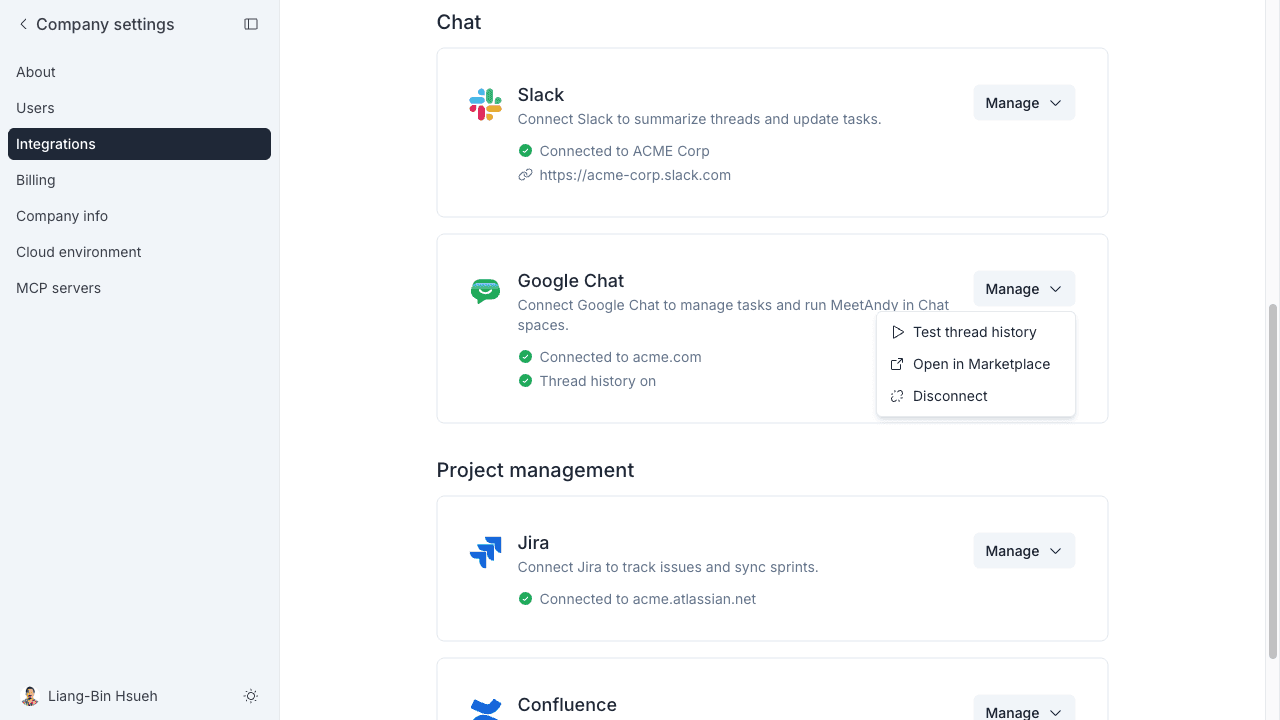
After connecting, you can verify that thread history is working from Company settings → Integrations → Google Chat. Click Test thread history — if it succeeds, Andy can read full thread context in spaces. If it fails, ask your Google Workspace admin to complete the org-wide Marketplace install.
Troubleshooting
The connect code expired. Codes expire in 15 minutes. Reload the setup page to get a fresh code.
"Must be sent from a space." You tried to connect from a direct message. Add Andy to a Google Chat space and send the code there.
Andy joined the space but didn't confirm the connection. The code may have already been used or expired. Reload the page for a new code and try again.
Thread history test fails after the org-wide install. The grant can take up to 24 hours to propagate after the admin installs the app. Wait a few minutes and test again.
My Workspace is already connected to another MeetAndy company. A Google Workspace can only be linked to one MeetAndy company at a time. Contact support if you need to move the connection.