

Getting started
Activate your account
Activate your MeetAndy account from the invitation email, then invite the rest of your team.
MeetAndy is invite-only. Your company starts with an invitation from the MeetAndy team. Once you're activated, you can invite the rest of your teammates from inside the app.
Activate your account
- Open the invitation email from MeetAndy.
- Click the link inside. It takes you to hub.meetandy.ai.
- Sign in with email and password, or continue with Google. The email must match the address your invitation was sent to.
- On first sign-in you'll see a short onboarding walkthrough. Click Go to Spaces when you're done.
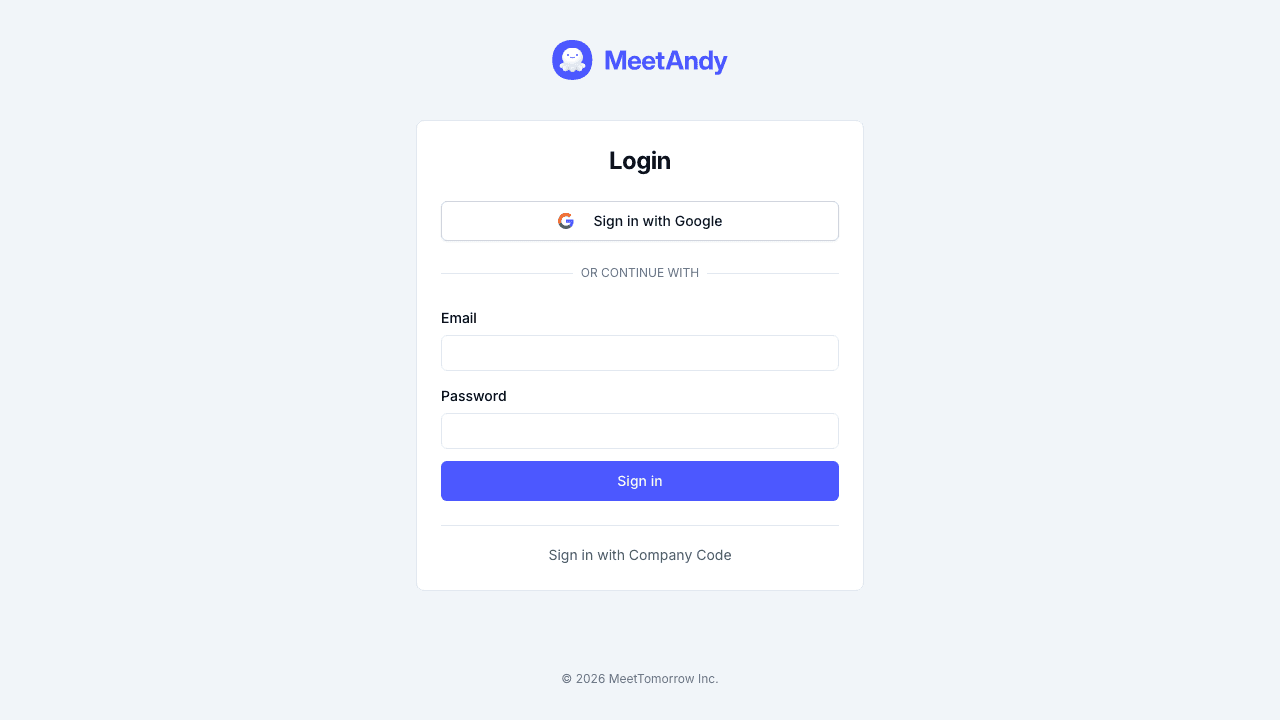
The first person from your company is set up as the company admin during onboarding. Admins can invite teammates and connect integrations like Slack, GitHub, GitLab, and Jira.
Invite your team
Once you're signed in:
- Open Company settings → Manage users from the sidebar.
- Click Add user in the top-right.
- Enter the teammate's email and pick a role:
- Company Admin: full access including integrations and billing
- Company Manager: can create Spaces and invite users, but can't change company-level settings
- User: can use Andy in their assigned Spaces
- Click Send invite. Your teammate gets an email with a link to activate their account, the same way you did.
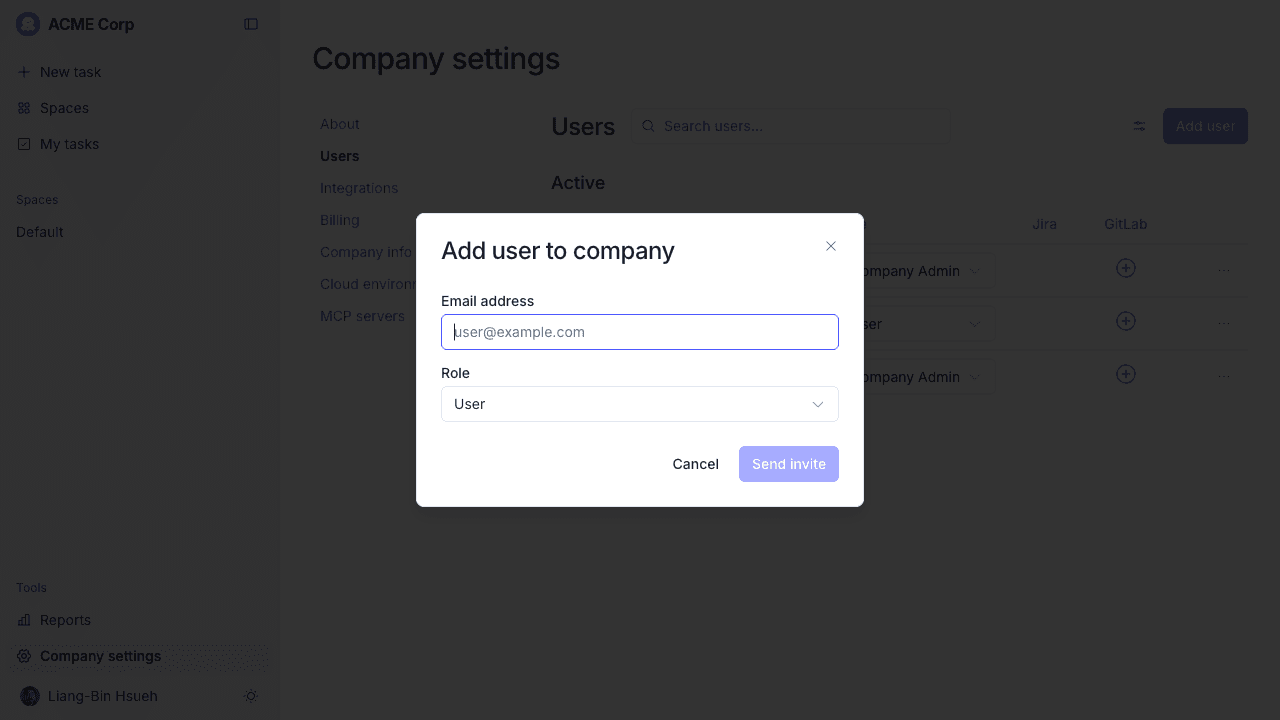
Admins can invite anyone. Managers can only invite other managers and users; they can't invite admins.
What's next
You have a workspace. Next, connect a Git host so Andy has somewhere to read code and open pull requests:
- Connect GitHub, if your team uses GitHub
- Connect GitLab, if your team uses GitLab