

Task details
The task details page collects the activity log, plan, walkthrough, branch, and pull request for one task in one place.
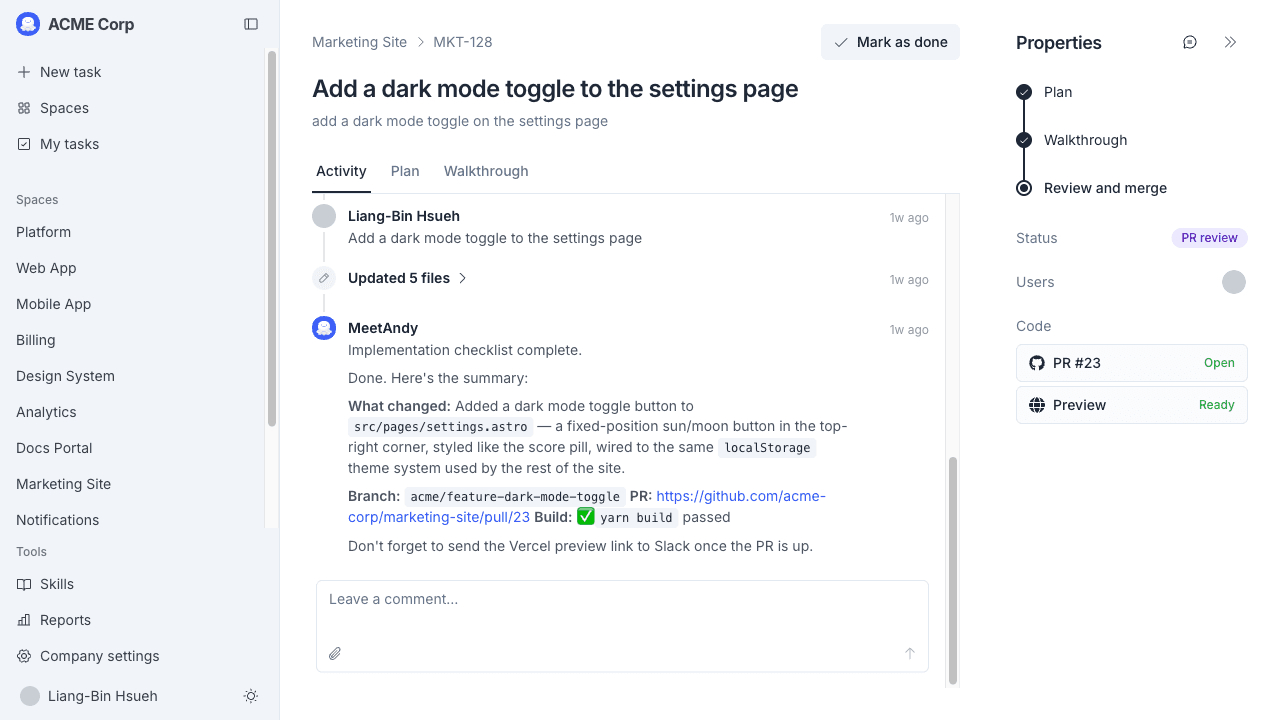
A task's details page lives at /tasks/{taskId} (or /tasks/PD-123 if your Space uses task keys). It's the canonical view of one task, with the description, plan, walkthrough, branch, and PR all in one place.
Layout
The page is split into two regions:
- Main area on the left. The task header and three tabs: Activity, Plan, Walkthrough.
- Properties panel on the right. Status, who's involved, links to the branch / PR / Slack thread.
On smaller screens the properties panel slides in from the bottom. Tap the info icon to open it.
Header
The header shows:
- A breadcrumb back to the Space (
Acme Product › PD-202) - The task title
- The full description, with a Show more / Show less toggle if it's long
- A circled-check icon for Mark as closed, which closes the task manually. The icon hides once the task is already in a terminal state (Done or Abandoned).
- A Re-open button on a Done task, which restores it to the most appropriate state (back to its open PR, a pending plan approval, or in-progress work) so you can pick it up again. See Task lifecycle.
Tabs
What's visible depends on how far the task has progressed. Tabs reveal as work happens.
Activity
A chronological log of everything that's happened on the task: Andy's planning passes, attempts at implementation, branch creation, PR events. File attachments show inline (images) or as downloads (other formats).
Activity also shows action banners when there's something for you to do:
- Needs plan approval with a Review button when planning is done
- Walkthrough ready for review with a Review button when implementation is ready
- New branch created with a link to the branch on GitHub or GitLab
- PR open for review with a link to the pull / merge request
For a task that started in Slack, comments you post here mirror to the Slack thread automatically, and Andy's replies mirror back too, so the web app and the Slack thread stay in sync. See Web app and Slack mirroring.
Plan
Andy's plan, rendered as Markdown. Code blocks, tables, and Mermaid diagrams all render properly. If Andy has produced multiple plan versions, a dropdown lets you switch between them.
When the task is in Needs plan approval, this tab shows two buttons:
- Approve plan. Let Andy start coding.
- Request changes. Leave a note about what to revise; Andy plans again.
You can also download the plan as a Markdown file.
Walkthrough
Once Andy has written code, the Walkthrough tab shows a summary of the changes: what files were touched, before/after snippets, and any caveats Andy flagged. From here you can:
- Approve preview. Let Andy open the PR.
- Request changes. Andy revises the implementation.
The Walkthrough tab only appears after the task has reached the implementation stage.
When Andy is already pushing follow-up commits to an open PR, the Walkthrough tab swaps in a Making changes to this PR… banner and the Make changes button is disabled until Andy finishes the current pass. This prevents you from queuing a second change on top of the one Andy is mid-way through.
Properties panel
The right-hand panel shows:
- Status. A color-coded badge for the task's current state ("Needs plan approval", "Implementing", "In review", "Done", and so on).
- Users. The task creator and any other members involved.
- Links. Jira tickets the Coding Agent created or updated while working on this task. Each chip shows the ticket key (e.g.
ACME-481) with the Jira mark; hover for the ticket title, click to open it in Jira. The section is hidden until at least one ticket is linked. - Code. Pull or merge requests Andy has opened for this task, with their current state (open, merged, closed). A task that touches multiple repos shows one entry per PR/MR. If the repo is connected to Vercel, the Vercel preview URL and build status appear inline next to the PR once the deploy is available.
A speech-bubble icon at the top of the panel links back to the original Slack thread, when the task was started from Slack.
How the page updates
While Andy is actively working, new activity streams onto the page the moment it happens, so you don't need to refresh. If a live connection isn't available, the page falls back to polling every few seconds. Updates stop once the task is idle.
Where this task is in its lifecycle
The status badge tracks the task's position in the overall flow. For the full reference of statuses and what each one means, see Task lifecycle.
See Reviewing Andy's work for the review steps once the PR is open.