

Users
Invite team members, manage their roles, and link individual GitHub, GitLab, and Slack accounts from the Users settings page.
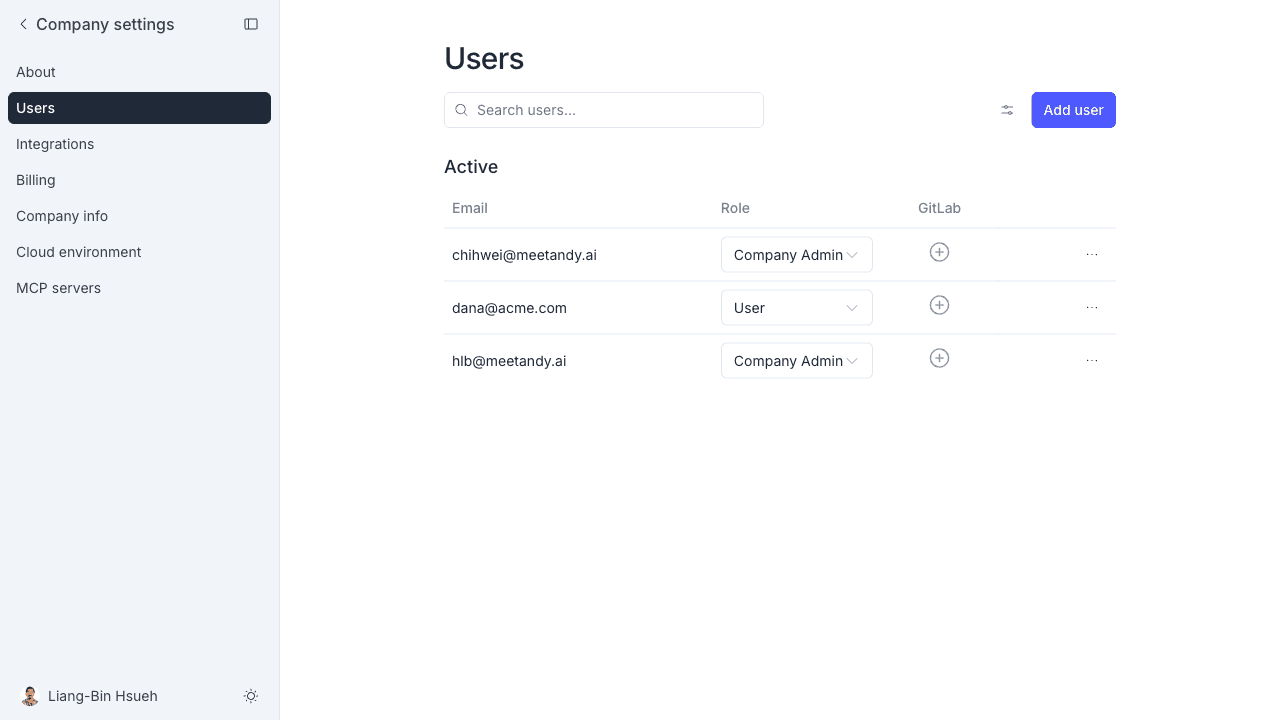
The Users settings page lists everyone in your company and lets admins invite new members, change roles, and link individual service accounts.
Open it from Manage → Users or visit hub.meetandy.ai/manage/users.
Roles
MeetAndy has three roles:
| Role | What they can do |
|---|---|
| Company Admin | Full access: manage all settings, invite any role, change roles, remove users |
| Company Manager | Invite and manage users at the Manager and User level; cannot change company-wide settings |
| User | Run tasks, view their own work |
A Company Admin can change any member's role from the dropdown in the users table.
Invite a user
- Click Add user.
- Enter the person's email address.
- Select a role.
- Click Send invite.
The person receives an email invitation. The invite appears in the Pending section of the Users page until they accept. If the invitation expires, click Resend to send a new one. Click Remove to cancel it.
If your company has Allowed domains configured in Company info, only email addresses from those domains can accept invitations.
Link service accounts
For integrations that are per-user (GitHub, GitLab, Slack), each member needs their individual account linked so Andy can act on their behalf.
Company Admins can link accounts from the Users table. The table shows a column for each connected integration. Click the icon in the relevant column to open the linking dialog for that user.
- GitLab / GitHub — enter the user's GitLab or GitHub username. MeetAndy looks up the matching account ID and stores it.
- Slack — enter the user's Slack member ID (found in their Slack profile under the "…" menu → Copy member ID).
Once linked, Andy can open pull requests and post messages as that user when running tasks.
You can also click Sync integrations from the row's actions menu (⋯) to refresh all linked accounts for a user.
Remove a user
Click the ⋯ menu on a user's row and select Remove user. This permanently removes them from the company. The action cannot be undone.