

Slack bots
Allow other Slack bots to start tasks with Andy and choose which Spaces they can use.
By default, only people can start work with Andy. This page is for company admins and managers who want an existing Slack bot, such as an order lookup bot, to mention Andy and start a task, and to let Andy hand requests to that bot.
Allow a bot
-
Open Manage → Integrations. Slack must be connected first.
-
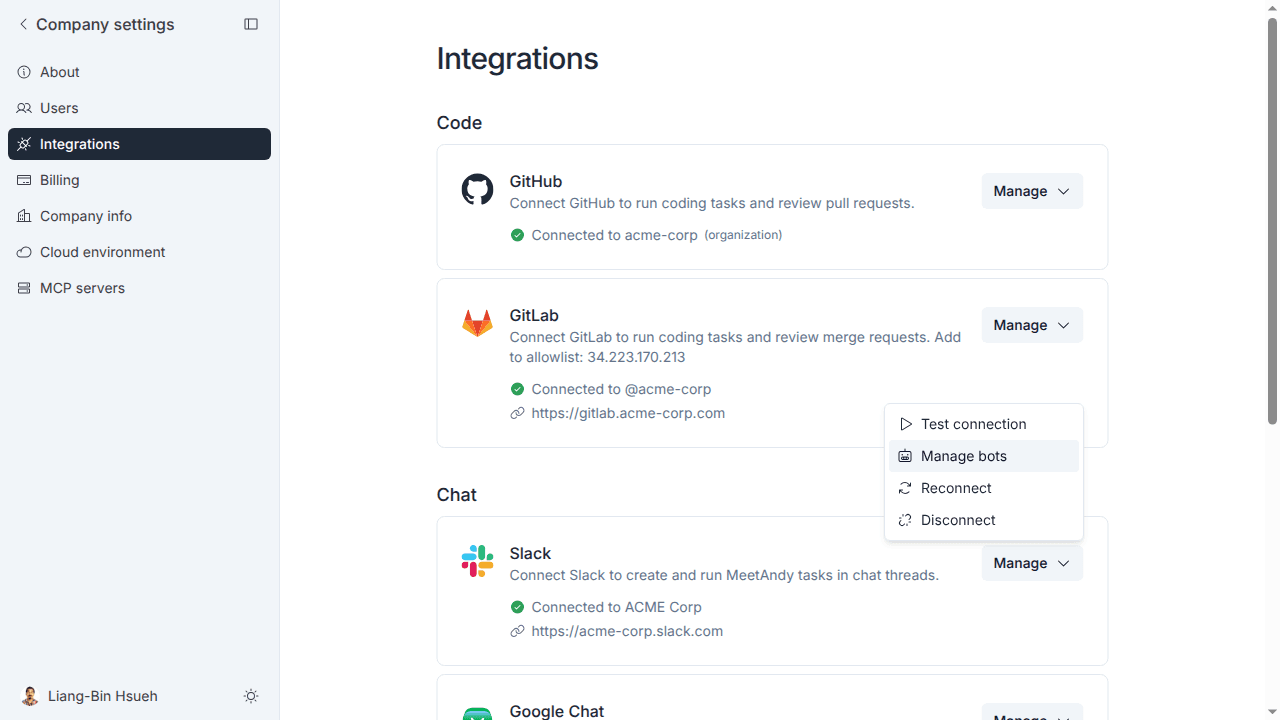
On the Slack card, open the Manage menu and choose Manage bots.
-
Click Add a bot, pick a bot from your Slack workspace, and click Allow bot. Leave Turn it on in all Spaces, including new ones checked to use the bot everywhere, or uncheck it to turn the bot on Space by Space.
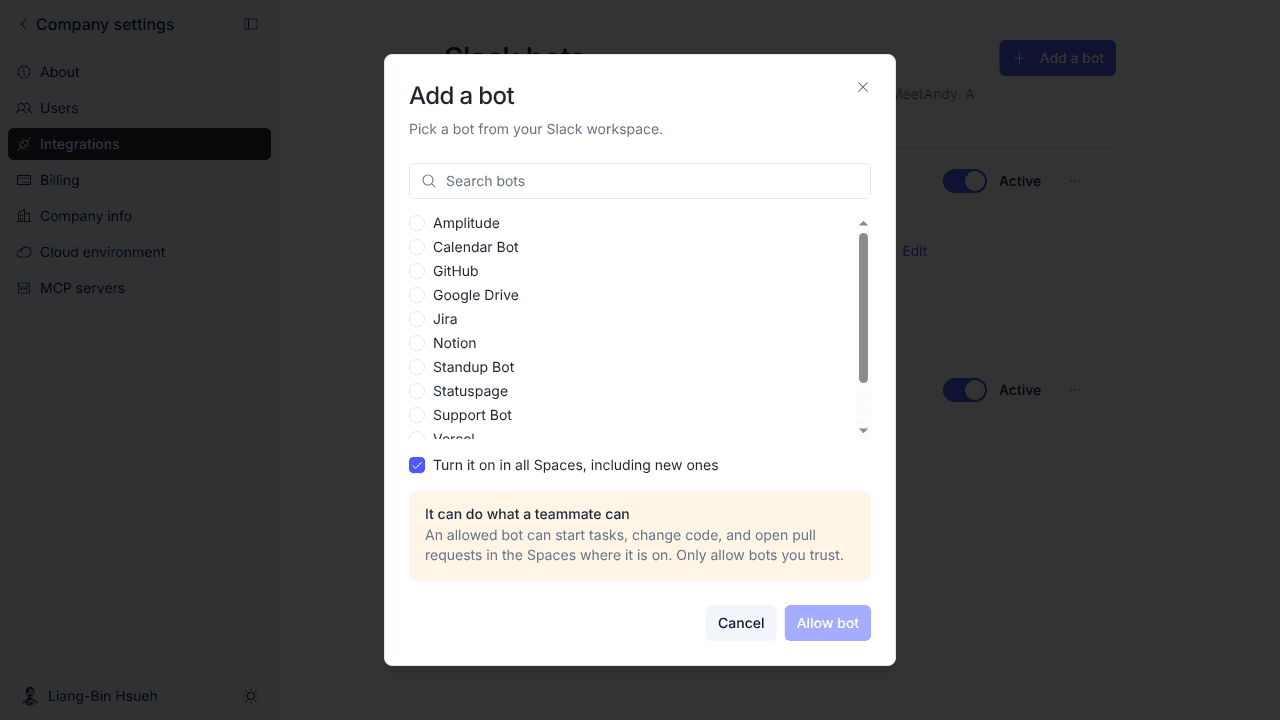
An allowed bot can do what a teammate can: start tasks, change code, and open pull requests in the Spaces where it is on. Only allow bots you trust.
- Under What it can do, click Add a description and describe what the bot does. Andy reads this to decide when to hand the bot a request. Without a description, Andy only asks the bot when someone names it.
- Optionally choose these settings:
- Tag the bot when its task is done or needs an answer. Andy mentions the bot in the thread when the task finishes, fails, or needs an answer, so the bot can pick up the result and carry on. Leave it off if the bot doesn't need to react to Andy's replies.
- On by default in every Space, including new ones. The bot is turned on in all your Spaces now and in any Space you create later, so you don't have to enable it Space by Space. Leave it off if you want to choose which Spaces the bot can use.
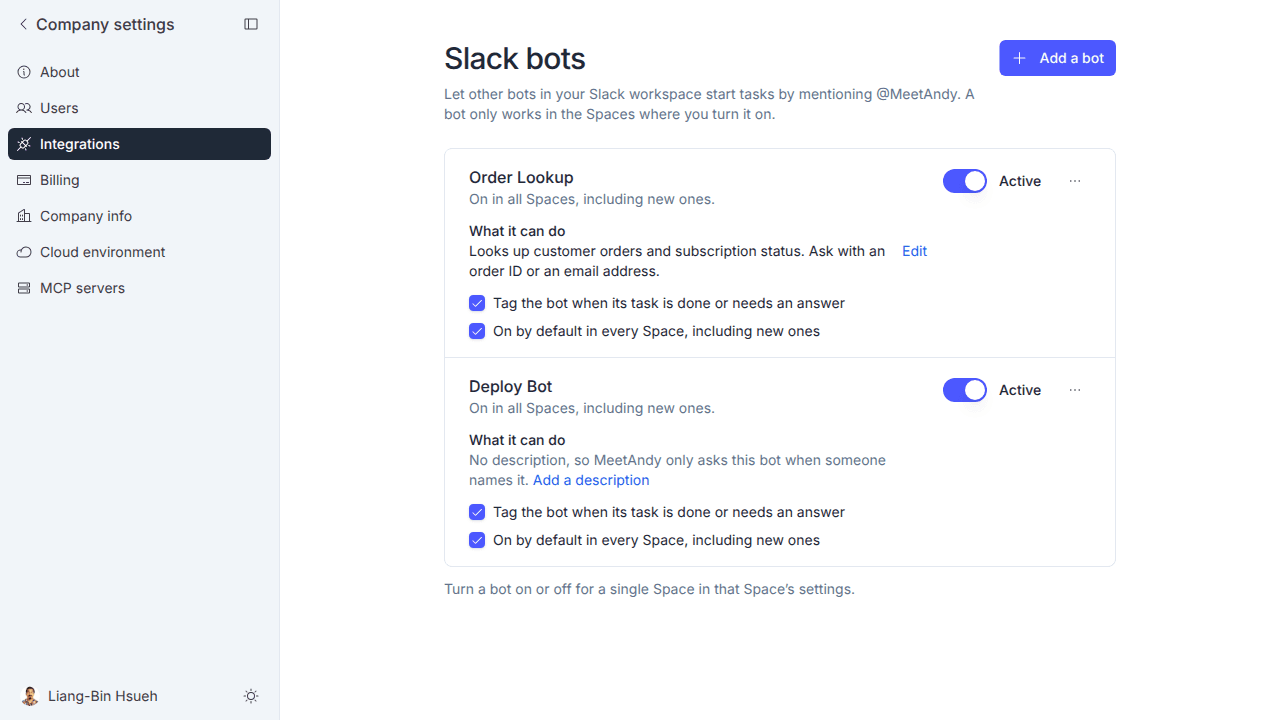
Use the switch on a bot's row to pause it for the whole company. A paused bot can't start tasks in any Space, and Andy tells it why.
Turn a bot on per Space
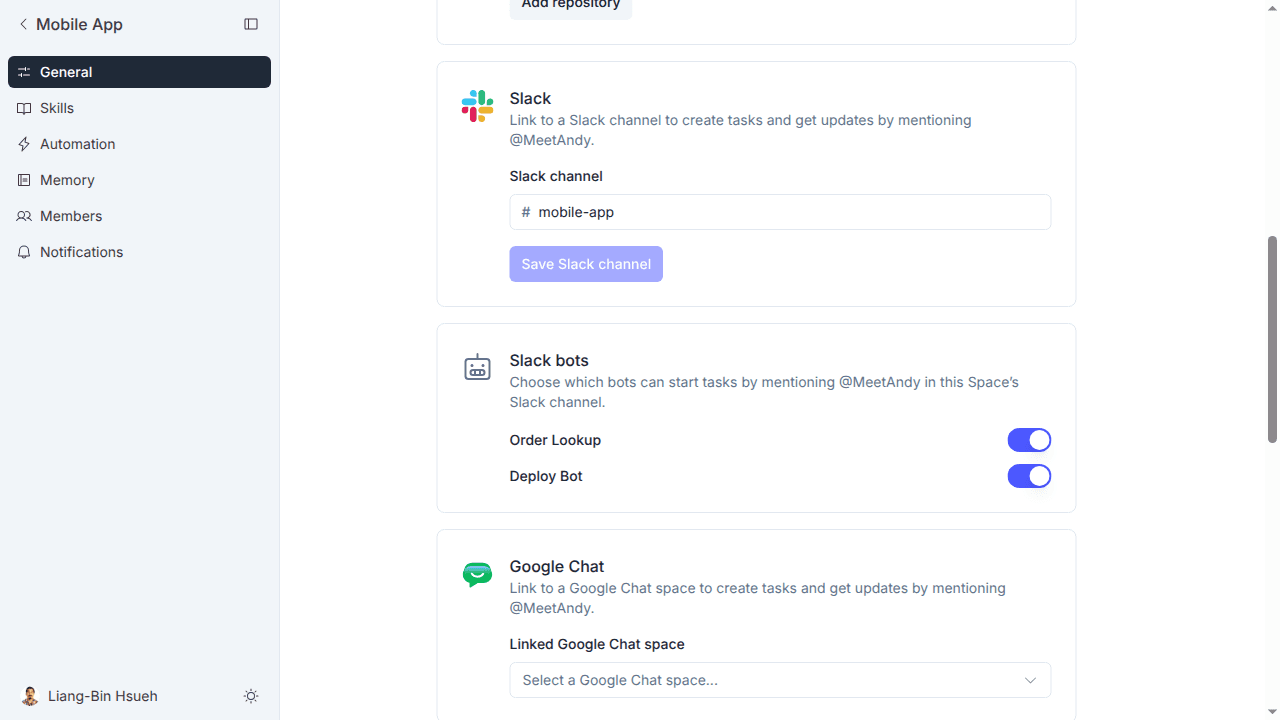
Open the Space's settings and use the Slack bots card to choose which allowed bots can start tasks by mentioning @MeetAndy in that Space's Slack channel.
How a bot's task runs
- The bot mentions @MeetAndy in a channel linked to a Space where it is turned on.
- Andy answers the person who asked the bot, and uses the same conversation flow as any other task.
- To keep loops from running away, a bot can mention Andy 4 times in a row in a thread before a person has to step in. It can start 15 new tasks an hour and have 100 running at once.
Tasks started by a bot appear in task reports, and the Team usage table marks bots. See Asking Andy about usage.